

Product Data with Claude
Build Datafiniti product queries with Claude — in a plain conversation you run yourself, or by letting a connected Claude run them for you.
Claude — Product Examples
Official Claude connector awaiting approval
The official Datafiniti Claude connector is still awaiting approval. Until approved, the built-in connector may not be available in Claude. You can still connect manually by configuring the Datafiniti MCP server yourself — see the MCP Server guide for instructions.
This guide shows how to get product data out of Datafiniti using Claude. It covers both of Claude's paths: a plain conversation where Claude writes a query and you run it, and connected mode where Claude runs queries itself through the MCP server. For setup of either path, see the Claude page.
For the field reference behind these queries, see the Product Data Schema, Constructing Product Queries, and Possible Values for Product Fields.
The goal
We want Apple laptops with their pricing — and we'll have Claude build the query, then run it ourselves.
Build the query in conversation
You don't need to connect anything. Paste in the product query guide and the possible-values page, describe what you want, and let Claude draft and explain the query.
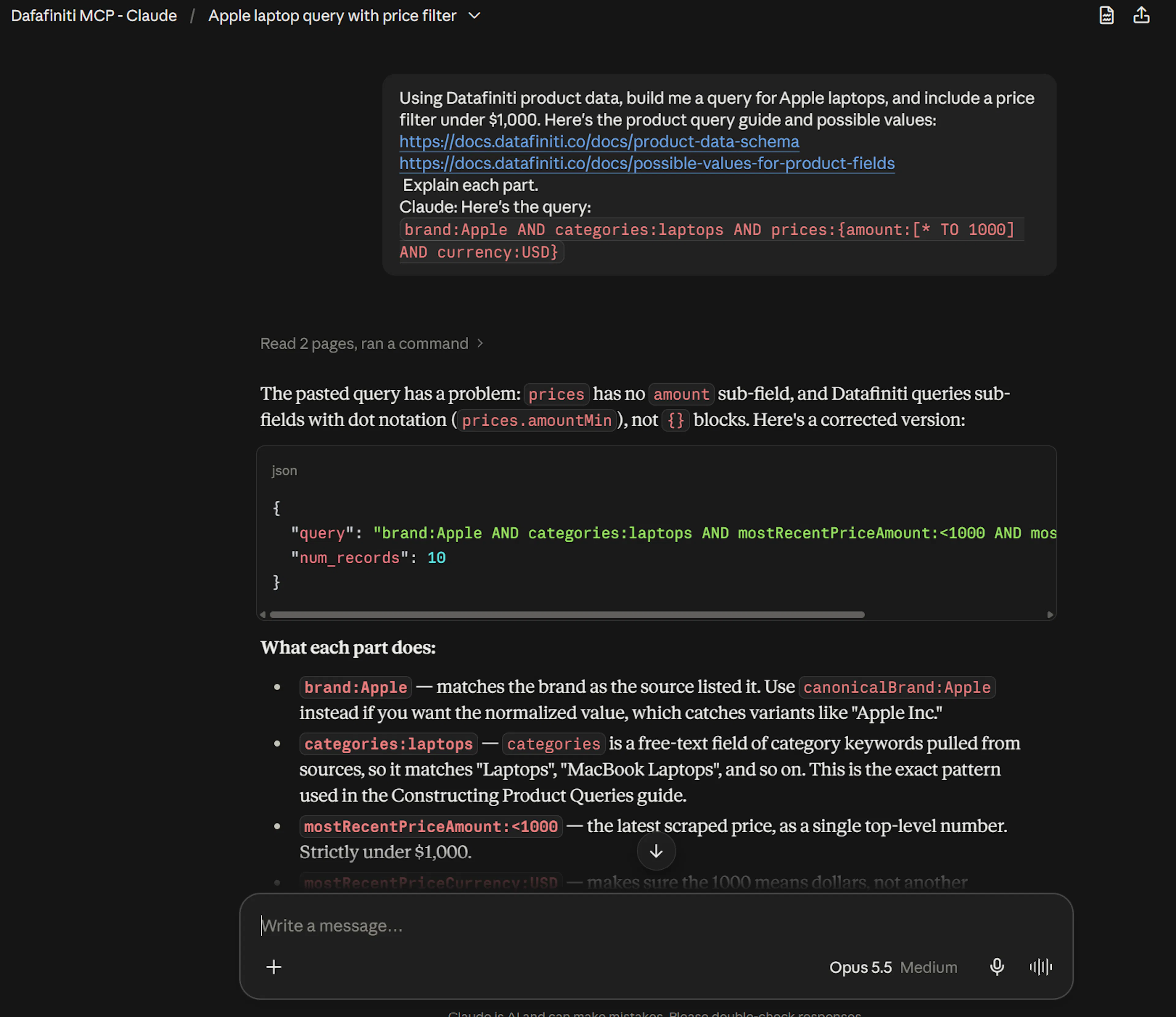
You: Using Datafiniti product data, build me a query for Apple laptops, and include a price filter under $1,000. Here's the product query guide and possible values: [paste or link the guides]. Explain each part.
Claude: Here's the query:
brand:Apple AND categories:laptops AND prices:{amount:[* TO 1000] AND currency:USD}
brand:Apple AND categories:laptopsmatches Apple products categorized as laptops.prices:{amount:[* TO 1000] AND currency:USD}uses the compound{}syntax so both conditions must hold for the same price entry — a USD price under 1,000 — rather than being satisfied by two different price records.
Run the query yourself
Exact-match quoting: " vs \"
When a value is quoted for an exact match (like the one above), which quote form to use depends on where the query goes. In the raw query string, use plain double quotes: FIELD:"value". When that query is a value inside a JSON tool argument or request body, the inner quotes must be escaped as \" so the JSON stays valid: "query": "FIELD:\"value\"". Some coding platforms and clients expect one form over the other — if a query returns an error or no results, check that the quoting matches the context you're pasting into.
Give Claude the right context
Product data leans on nested structures — prices, descriptions, and reviews. Paste in Constructing Product Queries so Claude uses dot notation for sub-fields (descriptions.value) and the compound {} syntax correctly, rather than a plain AND that would match across separate nested objects.
Take the query Claude produced and run it in Postman, cURL, or an SDK. Nested sub-fields go in the view as {"name": "<field>"} objects with dot notation:
{
  "data_type": "product",
  "query": "brand:Apple AND categories:laptops AND prices:{amount:[* TO 1000] AND currency:USD}",
  "num_records": 5,
  "view": [{"name": "name"}, {"name": "brand"}, {"name": "prices.amount"}, {"name": "prices.currency"}]
}
In a plain conversation Claude only writes the query — nothing is charged until you run it yourself.
Connected mode: let Claude run it
If you've connected the Datafiniti MCP server to Claude (see the Claude page), ask it to run the query directly:
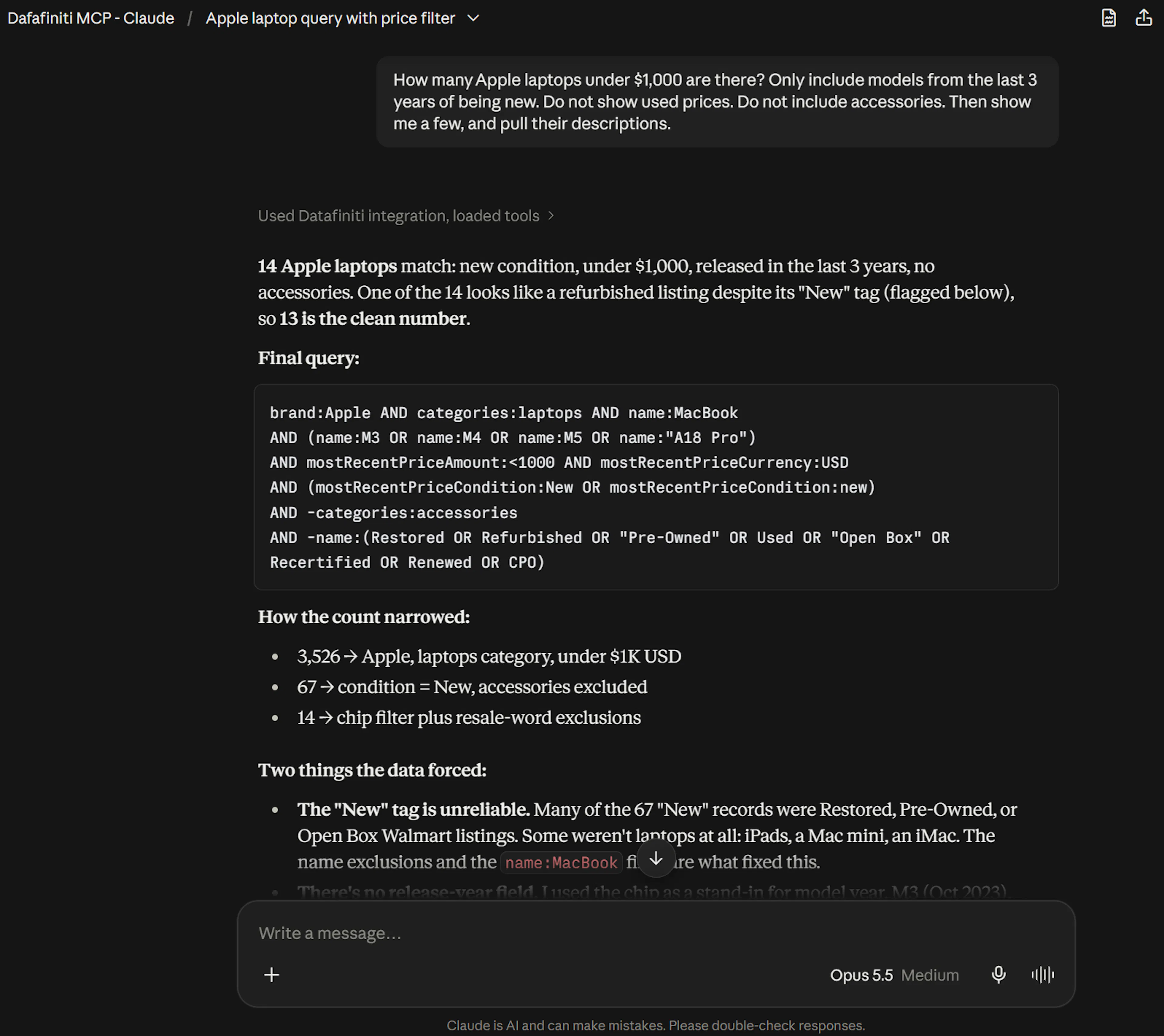
You: How many Apple laptops under $1,000 are there? Only include models from the last 3 years of being new. Do not show used prices. Do not include accessories. Then show me a few, and pull their descriptions.
Claude calls df_count first (free), then df_search for a sample. For a bulk pull of descriptions or reviews, it uses df_start_download instead:
{
  "data_type": "product",
  "query": "categories:laptops",
  "format": "JSON",
  "view": [{"name": "name"}, {"name": "brand"}, {"name": "descriptions.value"}, {"name": "reviews.text"}]
}
With the connector active, searches and downloads charge credits against the account you authorized; counting is free. See MCP Server for the full tool reference, and Product Data with AI for product fields and prompts.\
Use case: pricing analytics for pet food
A common product-data workflow is pulling pricing intelligence for a category — every known price for every product, so you can analyze distribution, track sales, and segment by brand. The Pricing Analytics for Pet Food guide walks through this for pet food; here's how Claude helps you build the queries.
Pricing lives in each record's prices field — a complete log of every price Datafiniti has seen for a product, each with its amount, currency, date seen, and merchant.
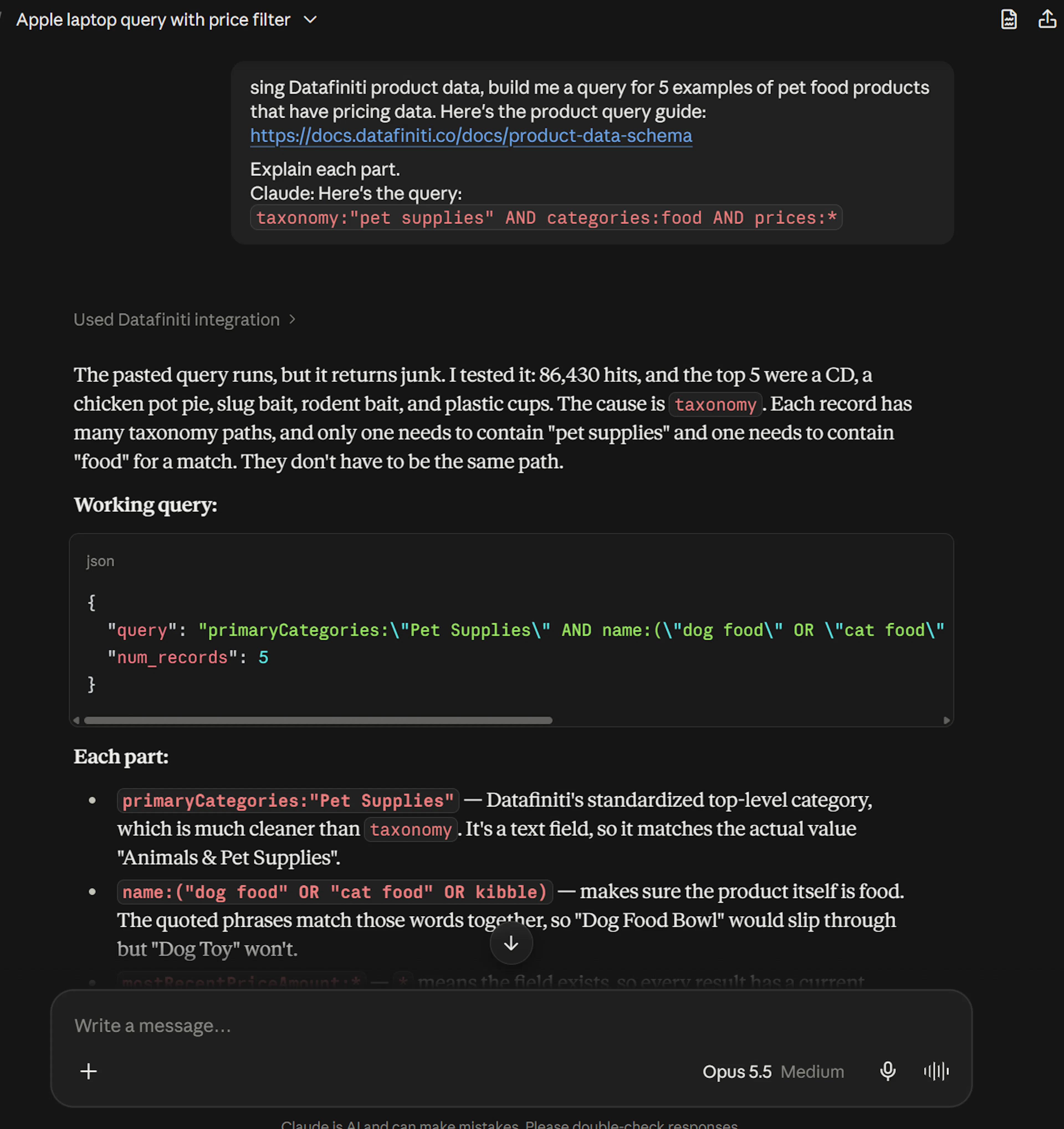
You: Using Datafiniti product data, build me a query for all pet food products that have pricing data. Here's the product query guide: [paste or link the guide]. Explain each part.
Claude: Here's the query:
taxonomy:\"pet supplies\" AND categories:food AND prices:*
taxonomy:"pet supplies"scopes to the pet supplies taxonomy.categories:foodnarrows to food within it.prices:*requires thepricesfield to exist, so every result has pricing data to analyze.
Segment your analysis
The guide notes you can slice pricing data using fields like categories, taxonomy, and brand. Ask Claude to add a brand filter, or to include brand in the view, when you want per-brand pricing breakdowns.
Narrow to products currently on sale
The mostRecentPriceIsSale field is a boolean flag for whether a product's most recent price is a sale price. To limit the pull to pet food currently on sale, Claude adds it to the query:
You: Now only the pet food to dog food that's currently on sale.
Claude: primaryCategories:\"Pet Supplies\" AND name:\"dog food\" AND mostRecentPriceIsSale:true AND mostRecentPriceAmount:* AND mostRecentPriceCurrency:USD
Most-recent fields are point-in-time
mostRecentPriceIsSale and other "most recent" fields reflect the value at the time of the API call and change over time. For ongoing tracking, re-run the query on a schedule rather than treating one result as permanent.
Pull the pricing data
For analytics you'll usually want the full set rather than a sample, so this is a download. Run it yourself, or have a connected Claude call df_start_download:
{
  "data_type": "product",
  "query": "taxonomy:"pet supplies" AND categories:food AND prices:*",
  "format": "JSON",
  "view": [{"name": "name"}, {"name": "brand"}, {"name": "categories"}, {"name": "taxonomy"}, {"name": "prices"}]
}
Each returned record carries its full prices array — every observed price with amountMin/amountMax, currency, dateSeen, and merchant — which is what you feed into your pricing analysis. For the full walkthrough, see Pricing Analytics for Pet Food.
Next steps
- Same flow for Property, People, or Business data.
- Setup for both paths: Claude.
- Full tool reference: MCP Server.