

Using Datafiniti's MCP with Postman
Connect to the Datafiniti MCP server from Postman to inspect its tools and prompts and exercise responses before wiring up an agent.
Using Datafiniti's MCP with Postman
Postman has first-class support for MCP, which makes it the easiest way to inspect the Datafiniti MCP server before you connect an AI agent to it. You can complete the MCP handshake, list the available tools and prompts, and call a tool by hand — all without writing any code.
For this guide, we'll assume you want to confirm the server is reachable with your token, see what tools and prompts are exposed, and run a single df_search to verify you get records back.
Your environment and needs:
- You're working with Postman.
- You have a Datafiniti API token.
Here are the steps we'll take:
1. Download Postman
We recommend using Postman when working with the Datafiniti MCP server. It's a great client for MCP and works particularly well with Datafiniti. You can download Postman here.
Postman version
MCP support is only available in recent versions of Postman. If you don't see an MCP request type, update Postman to the latest release.
2. Get Your API Token
You'll need your API token to authenticate the MCP session. The MCP server uses the same bearer token as the REST API — there's no separate MCP credential.
To get your API token, go to the Datafiniti Web Portal, log in, and open your settings from the left navigation bar. Copy the token or store it somewhere you can easily reference.
API Key
For the rest of this document, we'll use AAAXXXXXXXXXXXX as a substitute example for your actual API token when showing example calls.
API Key Regen
For security reasons, your API token is automatically changed whenever you change your password.
3. Create an MCP Request
In Postman, create a new MCP request. Set the server URL to the Datafiniti MCP endpoint:
https://api.datafiniti.co/v4/mcp
Set the transport to Streamable HTTP. This is the transport the Datafiniti server uses — a single HTTP endpoint that carries the initialize handshake, tools/list, prompts/list, and tool calls, plus an optional server-to-client stream.
4. Add Your Authorization
The MCP server sits behind the same authentication as every other Datafiniti route, so you authenticate with a bearer token.
Under the request's Authorization tab, choose Bearer Token and paste your API token:
Authorization: Bearer AAAXXXXXXXXXXXX
It should look like this:
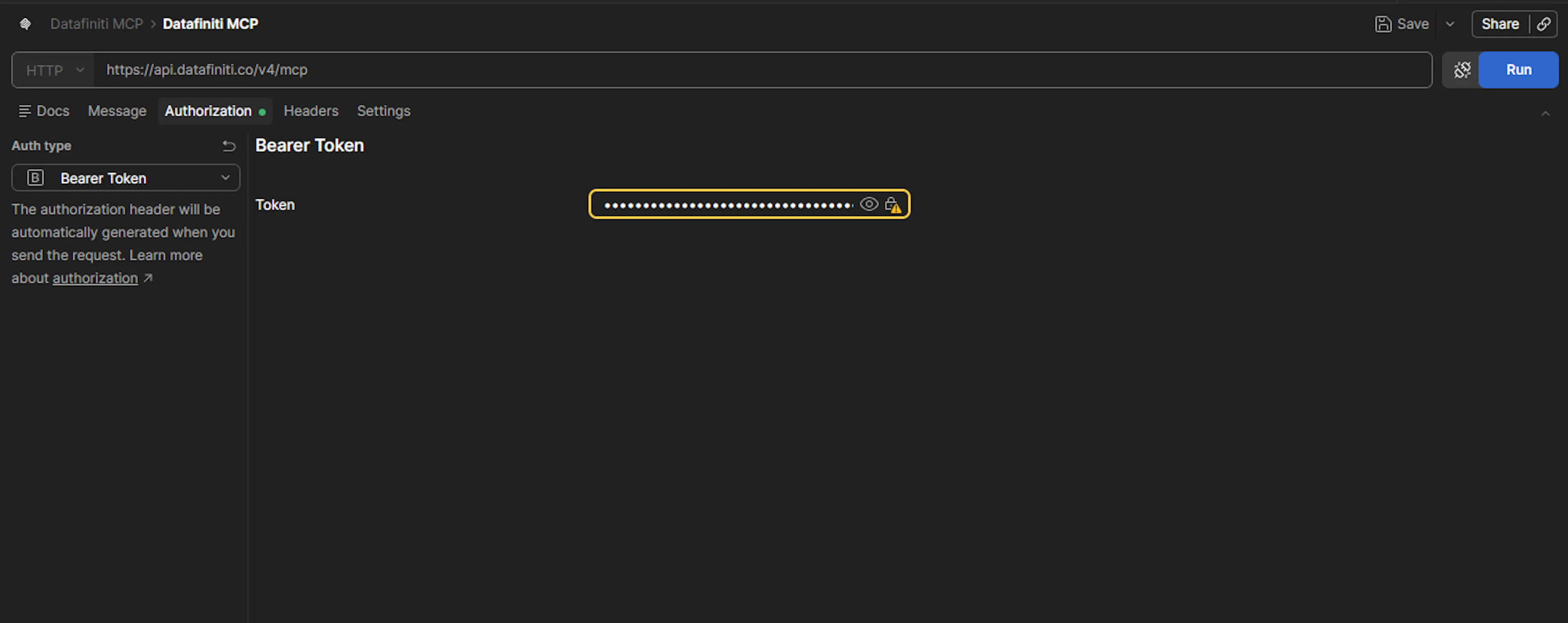
Your token tells the server who you are, what you have access to, and how to account for credits — exactly as it does for a REST call. Field permissions are enforced identically to REST.
5. Connect and List Tools
Send the request to connect. Postman performs the MCP handshake and then lets you list what the server exposes.
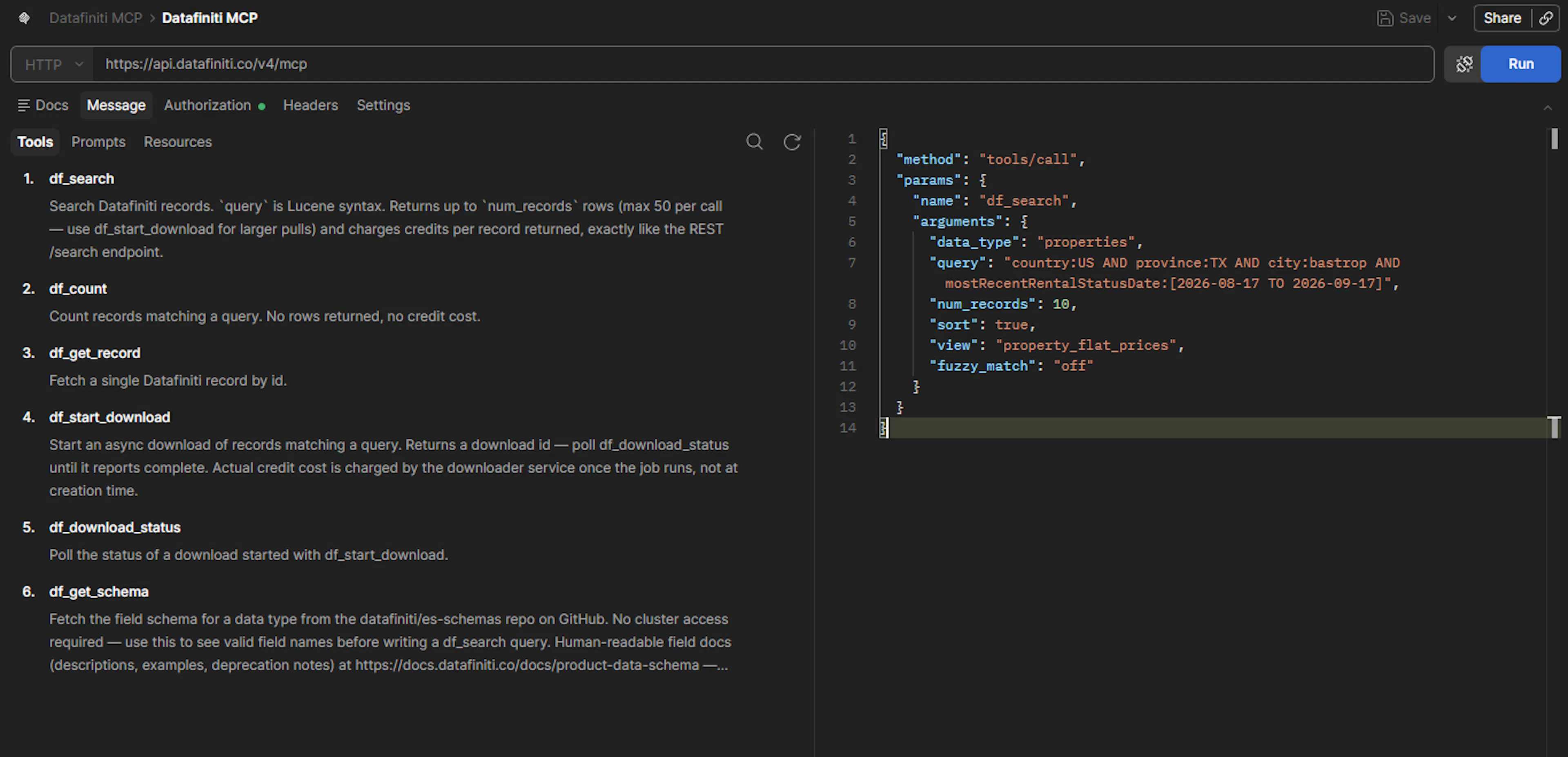
List the available tools. You should see the Datafiniti tool set:
df_search
df_count
df_start_download
df_download_status
df_get_record
df_get_schema
Each of these reuses the same REST request handler the public API uses, so behavior and pricing match REST exactly.
Handshake overlap
A single MCP handshake legitimately issues several requests in quick succession — initialize, notifications/initialized, tools/list, prompts/list, and an optional stream request. This is expected; the server's rate limit accounts for it.
6. List the Prompts
Next, list the available prompts. Each prompt converts a docs.datafiniti.co use-case guide into a ready-to-run query template and returns a built query rather than executing anything itself.
Where a prompt argument has a small, verified value set — such as a property status — Postman renders it as a dropdown rather than a free-text box, because those arguments are defined as enums on the server.
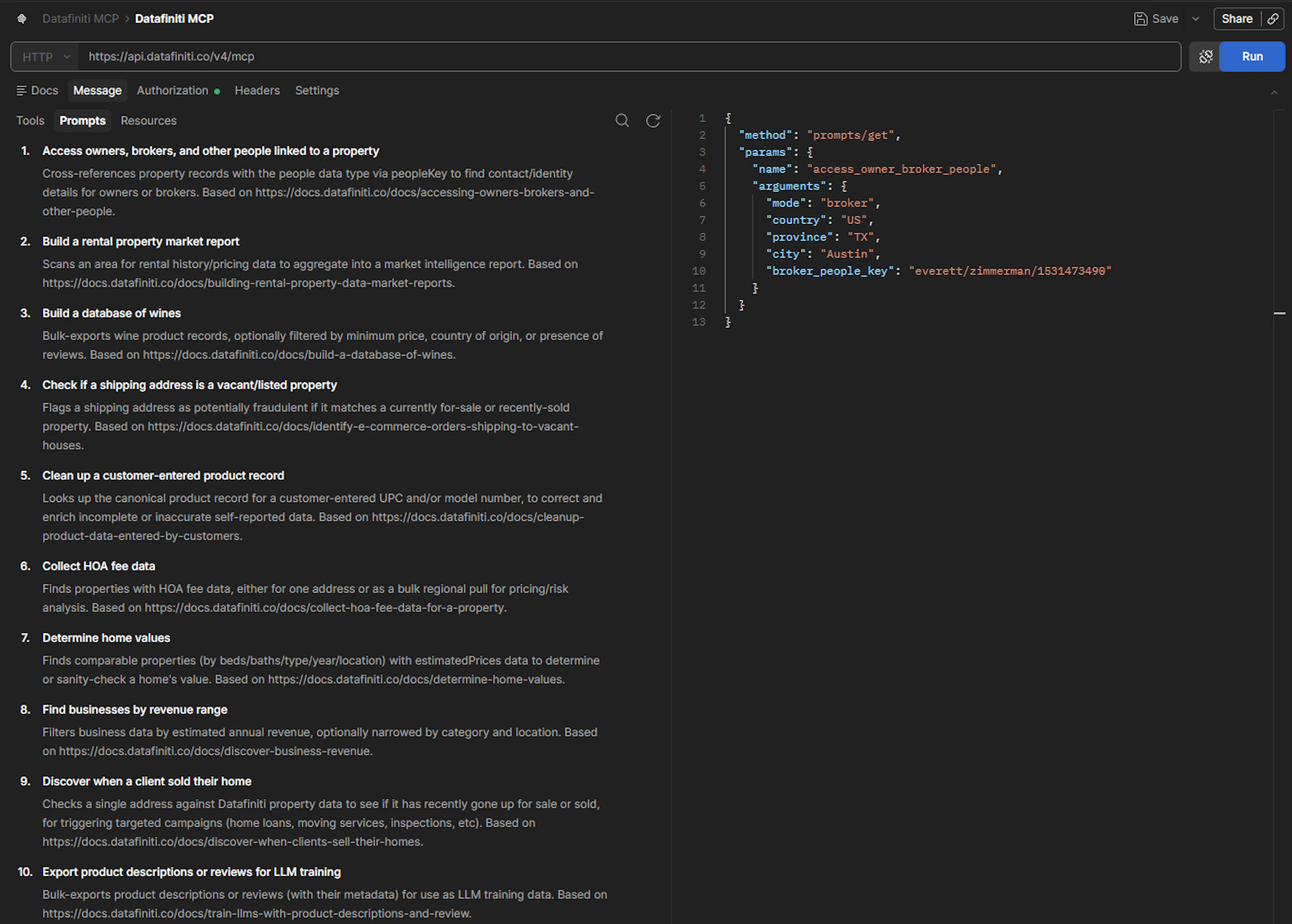
MCP prompt arguments are transmitted as a flat string-to-string map, so every argument is a simple string — no arrays or nested objects. Nested values are expressed with dot notation where needed.
7. Call a Tool
Now run a real query. Select the df_search tool and provide its arguments. For a property search, that's a query string and a record count:
{
  "query": "country:US AND propertyType:"Single Family Dwelling"",
  "num_records": 1
}
Send it. The server runs the same handler as REST /search, charges credits identically, and returns up to 50 records (here, just 1). You'll get back a response containing num_found, total_cost, and a records array — the same shape a REST search returns.
Escaped quotes
Exact-match values inside a query use escaped quotes — propertyType:\"Single Family Dwelling\" — not unescaped quotes.
8. Read Structured Errors
If a call fails, the tools that agents actually hit return a structured error object rather than a bare status code or loose string:
{
  "code": "invalid_query",
  "message": "…",
  "field": "query"
}
Branch on the stable code — for example invalid_query, invalid_view, out_of_range, credit_limit_exceeded, or no_results — rather than string-matching the message. This is the same error shape your agent will see in production, so it's worth confirming here.
Next steps
Once you've confirmed the server responds and returns records, you're ready to point an AI agent at the same endpoint and token. See Using Datafiniti with AI for the tool and prompt reference, and the per-data-type pages for Property, People, Product, and Business data.
Was this page helpful?