

Property Data with Postman MCP Connection
Drive the Datafiniti MCP tools against property data by hand in Postman — count, search, filter on status, and start a download.
Postman — Property Examples
This guide walks through calling the Datafiniti MCP tools against property data by hand in Postman — selecting a tool, filling in its argument form, sending, and reading the response. It assumes you've already connected Postman to the MCP server and authenticated; if not, start with the Postman guide for download, token, request, and connection setup.
Everything here uses the same tools and data_type parameter as the other data types; what changes are the fields, statuses, and views specific to property records. For the field reference, see the Property Data Schema and Constructing Property Queries. For the full tool reference, see MCP Server.
The goal
We'll find single-family homes currently for sale in Austin, TX — first counting them, then pulling a small sample, then filtering on status, then starting a download.
1. Count with df_count
Select the df_count tool. Postman shows an argument form; fill in data_type and query:
{
  "data_type": "property",
  "query": "country:US AND province:TX AND city:Austin AND propertyType:"Single Family Dwelling" AND mostRecentStatus:"For Sale""
}
Send it. df_count returns a match count with no records and no credit cost:
{
  "num_found": 372
}
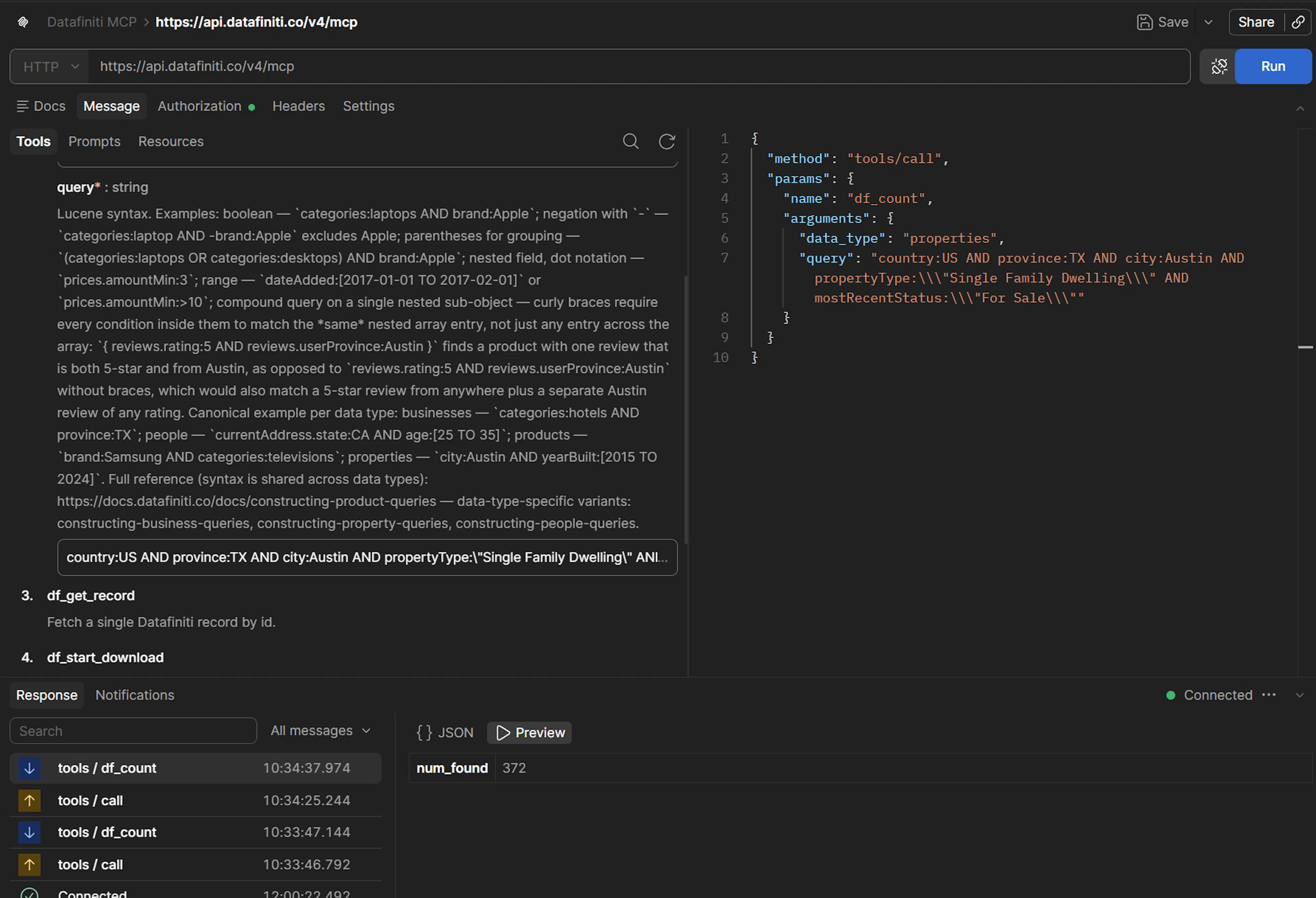
Count first, spend nothing
A count is free, so use it to confirm your query is shaped the way you expect before running a search. A count of 0 is a valid result, not an error — if you expected matches, check for a rental-side status on mostRecentStatus, an enum value that isn't in Possible Values, or a field name that doesn't match the schema.
2. Search with df_search
Select df_search. Add num_records and a view to the same query:
{
  "data_type": "property",
  "query": "country:US AND province:TX AND city:Austin AND propertyType:"Single Family Dwelling" AND mostRecentStatus:"For Sale"",
  "num_records": 5,
  "view": [{"name": "address"}, {"name": "city"}, {"name": "province"}, {"name": "postalCode"}, {"name": "mostRecentPriceAmount"}, {"name": "numBedroom"}, {"name": "numBathroom"}]
}
Send it. The response has the same shape as a REST search — num_found, total_cost, and a records array:
{
  "num_found": 3184,
  "total_cost": 5,
  "records": [
    {
      "address": "…",
      "city": "Austin",
      "province": "TX",
      "mostRecentPriceAmount": 000000,
      "numBedroom": 3,
      "numBathroom": 2
    }
  ]
}
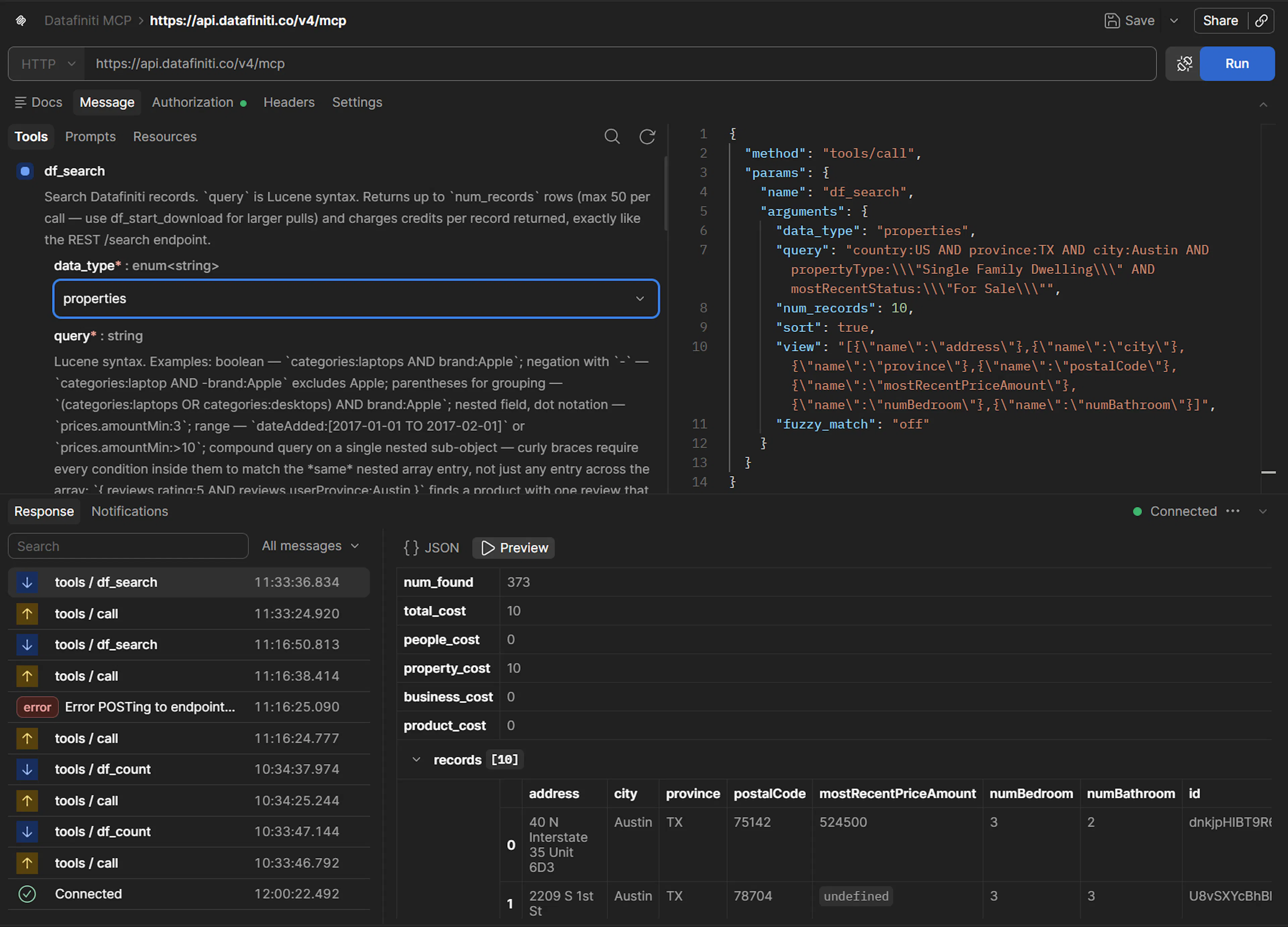
Quoting exact-match values
Exact-match values use double quotes in the query: propertyType:"Single Family Dwelling". Postman sends the JSON body as-is, so escape the inner quotes as \" in the argument form. That's JSON encoding, not query syntax.
num_records defaults to 1
If you leave num_records out, df_search returns a single record. Set it (up to 50) when you want more.
3. Filter on property status
Property status routes to a specific field: sale-side values live on mostRecentStatus, rental-side values on mostRecentRentalStatus. A rental value queried against the sale field returns zero results.
Sale-side:
{
  "data_type": "property",
  "query": "country:US AND province:TX AND mostRecentStatus:"For Sale""
}
Rental-side — note the different field:
{
  "data_type": "property",
  "query": "country:US AND province:TX AND mostRecentRentalStatus:"For Rent""
}
For the complete, verified set of status values and which side each belongs to, see Possible Values for Property Fields.
4. Start a download with df_start_download
For the full set rather than a sample, select df_start_download. Add a format:
{
  "data_type": "property",
  "query": "country:US AND province:TX AND city:Austin AND propertyType:"Single Family Dwelling" AND mostRecentStatus:"For Sale"",
  "format": "JSON",
  "view": [{"name": "address"}, {"name": "city"}, {"name": "province"}, {"name": "postalCode"}, {"name": "mostRecentPriceAmount"}]
}
It returns a JSON object describing the new download, including its download id. Copy that id, select df_download_status, and poll:
{
  "download_id": "…"
}
The status comes back as queued, running, completed, or cancelled. Once completed, the response includes links to the result files (valid for 7 days).
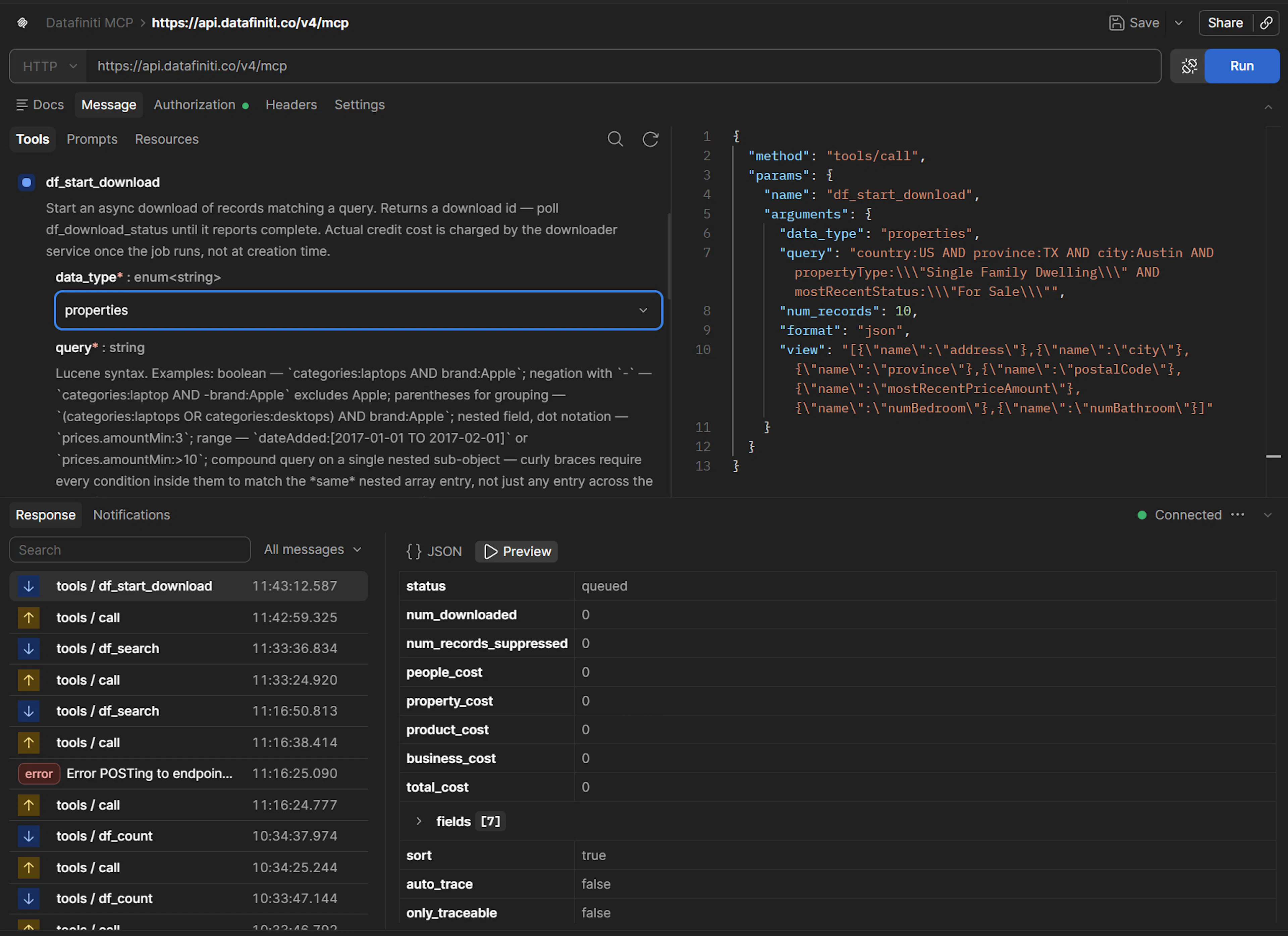
Download size follows your plan
How many records a download can return is governed by your subscription plan. To page a smaller set by hand instead, df_search returns up to 50 records across calls.
5. Try a property prompt
Select a prompt such as find_investment_properties from Postman's prompt list. It returns a ready-to-run query rather than executing anything; a property status argument renders as a dropdown of enum values. Copy the query it produces into df_search or df_start_download to run it.
For the full list of property prompts, see Property Data with AI.
Next steps
- Same flow for People, Product, or Business.
- Setup and connection: Postman.
- Full tool reference: MCP Server.